Enterprise DNN Development for Scalable Business Growth
Build secure, high-performance DotNetNuke solutions with custom modules, seamless API integrations, and scalable architecture, engineered by experienced DNN developers to support evolving business requirements and long-term growth.
Custom DotNetNuke Solutions Built Around Your Business
Transform your DNN website with tailored modules, responsive themes, workflow automation, and powerful integrations, delivering reliable functionality, streamlined operations, and a flexible platform designed around your unique business needs.
Expert DNN Developers for Complex Business Challenges
Leverage proven DotNetNuke expertise to modernize legacy websites, develop advanced functionality, optimize performance, and strengthen security with professional development, dependable support, and solutions built for lasting results.
How to Secure a DNN Website: Security Checklist (2026)
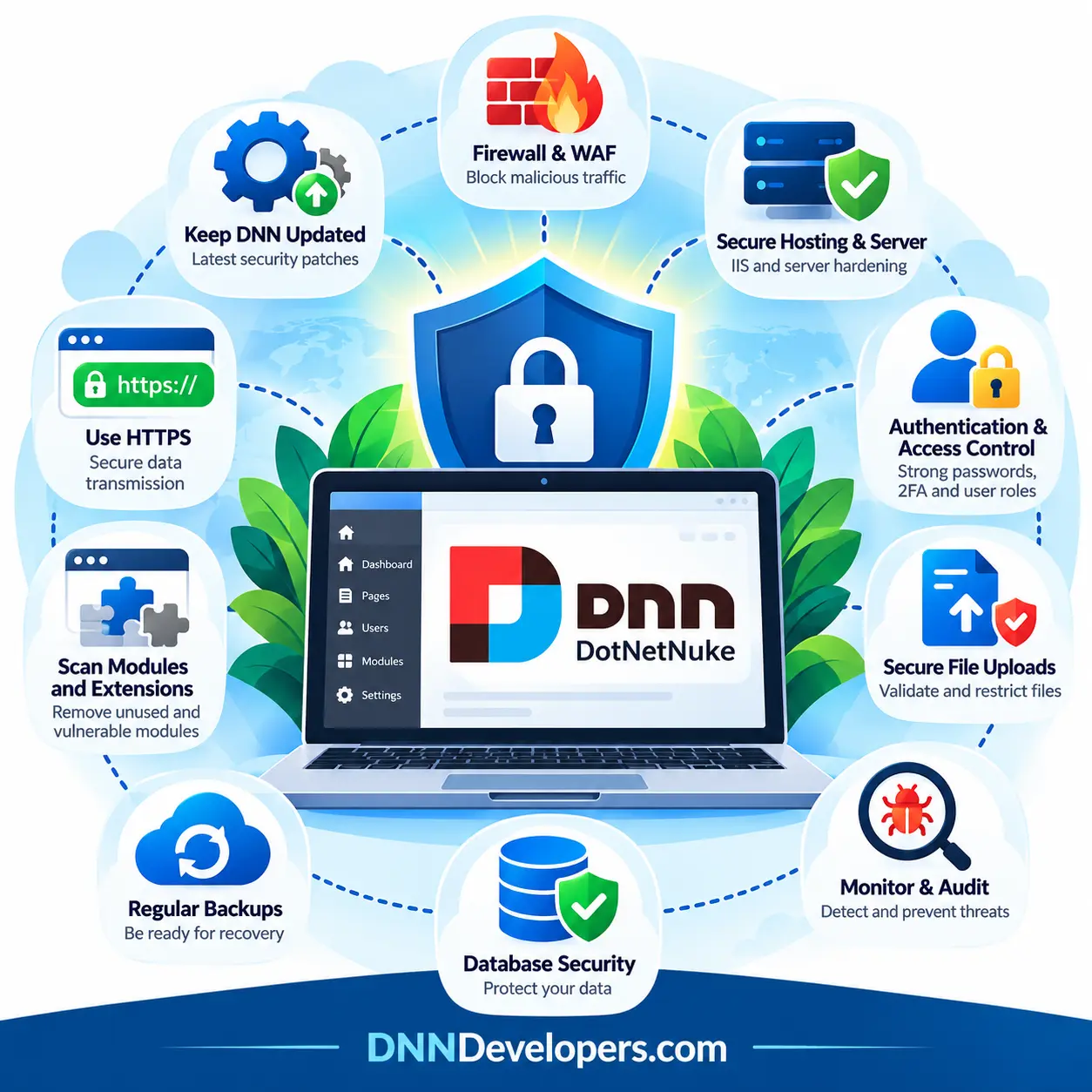
Securing DNN is a layered job: no single setting protects a site on its own.
Quick answer: how do you secure a DNN website?
To secure a DNN (DotNetNuke) website, upgrade to a currently supported and patched release, review applicable security advisories, and remove legacy Telerik components where required. Protect SuperUser accounts, enforce HTTPS correctly, restrict file uploads, audit third-party extensions and custom modules, harden IIS and SQL Server, monitor security logs, and test encrypted off-site backups. Validate configuration changes in staging before deploying them to production.
This guide covers DNN Platform 9.13.x and 10.x, with separate considerations for Evoq. Security settings and upgrade procedures can vary by release and edition, so confirm the recommended action against the official documentation for your installation.
1. Know your version and edition first
Security advice depends on what you run. DNN Platform is the open-source product; Evoq is the commercial edition. They share a codebase lineage but not identical release numbers or fix timing. For example, DNN’s support documentation states that Evoq 9.13.10 is based on DNN Platform 9.13.9 while including targeted security fixes, so version-number parity is not a reliable indicator of security coverage.
Version considerations for security planning
Line
What to know
DNN Platform 10.x
Requires .NET Framework 4.8 or later, Windows Server 2016 or later (or Azure App Service), and SQL Server 2017, 2019, 2022 or Azure SQL Database. Telerik removal is mandatory on upgrade. The GitHub releases page lists v10.4.0 (6 October 2026) at the time of writing; always check the current release.
DNN Platform 9.13.x
9.13.10 was published as a security-focused release for sites that could not yet move to 10. Treat 9.13.x as a stepping stone, not a destination, because future fixes may not be backported.
Evoq
Follow the Evoq release notes for your edition and target version rather than assuming Platform fix parity.
Anything older than 9.13
Plan an upgrade. Older lines predate Telerik removal tooling and many later fixes.
Upgrading is the single highest-value security step. Recent public advisories show why:
CVE-2026-40321: a specially crafted SVG upload could carry scripts that affect authenticated and unauthenticated users (stored XSS). It is fixed in 10.2.2. See the NVD entry.
CVE-2026-40306: all new installations of DNN 10.0.0 through 10.2.1 shared the same Host GUID. It does not affect upgrades from 9.x and is fixed in 10.2.2. See the advisory record.
CVE-2026-24838: stored XSS via the module title, rated critical in the GitHub Advisory Database, with fixes in 10.2.0 and 9.13.10. See the advisory.
If your site was freshly installed on 10.0.0–10.2.1, review the Host GUID advisory and upgrade to a current 10.x release.
Build a repeatable upgrade routine
Subscribe to the DNN Security Center and watch the DNN Platform GitHub advisories. In the Persona Bar, the Security Bulletins tab (under Settings > Security) shows known issues for your version.
Clone production to a staging environment and run the upgrade there first.
Follow DNN’s Suggested Upgrade Path. Since 10.2.0, DNN uses a revised upgrade process designed to be more reliable, so read the release notes before upgrading.
Take a full file and database backup immediately before the production upgrade, and confirm you can restore it.
Test third-party extensions before go-live. Extension compatibility is the most common cause of delayed upgrades.
DNN’s own policy is to publish security maintenance releases for retired major versions for a limited period only, so do not rely on a retired line staying patched. Do not report suspected vulnerabilities in public forums; follow the official DNN security policy.
3. Remove the Telerik components
Older DNN versions shipped a legacy Telerik ASP.NET component suite. The DNN 9.11.0 release notes describe Telerik being removed from the codebase, with removal optional on upgrade but “highly recommended”. The DNN documentation now states that in DNN 10.x, Telerik removal is forced.
Upgrade to the latest 9.13.x release first if you are still on an older 9.x line.
Take a fresh backup.
Use the Telerik Removal page in the Persona Bar (it appears when Telerik components remain) to analyse dependencies.
Upgrade, replace or remove any third-party extension the tool flags as Telerik-dependent.
DNN has two privileged role types: Administrator (scoped to a site) and SuperUser (formerly Host), which can see and do everything across the installation. The DNN community’s guidance is to use SuperUser only for superuser-level configuration and to work as a lower-privileged user otherwise.
Audit SuperUsers
Go to Persona Bar > Manage > Users and choose Superusers in the Show dropdown.
Remove accounts that are unrecognised, shared or no longer needed. DNN’s documentation notes that deleting an account does not by itself remove role-based permissions, so also remove the user from roles.
Open Settings > Security > Security Analyzer > Super User Activity to review when accounts were created and last used. An account created without your knowledge is a red flag.
For a read-only cross-check against the database, this query lists SuperUser accounts. It has not been run against every DNN version, so use the Persona Bar as the primary source.
-- Read-only. Adjust dbo. if your install uses a different databaseOwner or objectQualifier.
SELECT UserID, Username, Email, IsDeleted, CreatedOnDate, LastModifiedOnDate
FROM dbo.Users
WHERE IsSuperUser = 1
ORDER BY CreatedOnDate;
Strengthen login controls
Review password and member-management options under Settings > Security > Member Accounts.
Use Login IP Filters (Settings > Security > Login Settings) where administrators log in from known networks.
Two-factor authentication: the DNN documentation reviewed for this article did not describe a built-in TOTP option, but third-party two-factor and SSO authentication providers for DNN Platform and Evoq are available through the DNN Store. Whatever you choose, remember that 2FA only protects login routes that pass through it. If standard DNN login stays enabled alongside it, users may still sign in without the second factor. Test with a SuperUser and keep a recovery path before disabling anything. Check your Evoq edition’s documentation for any bundled options.
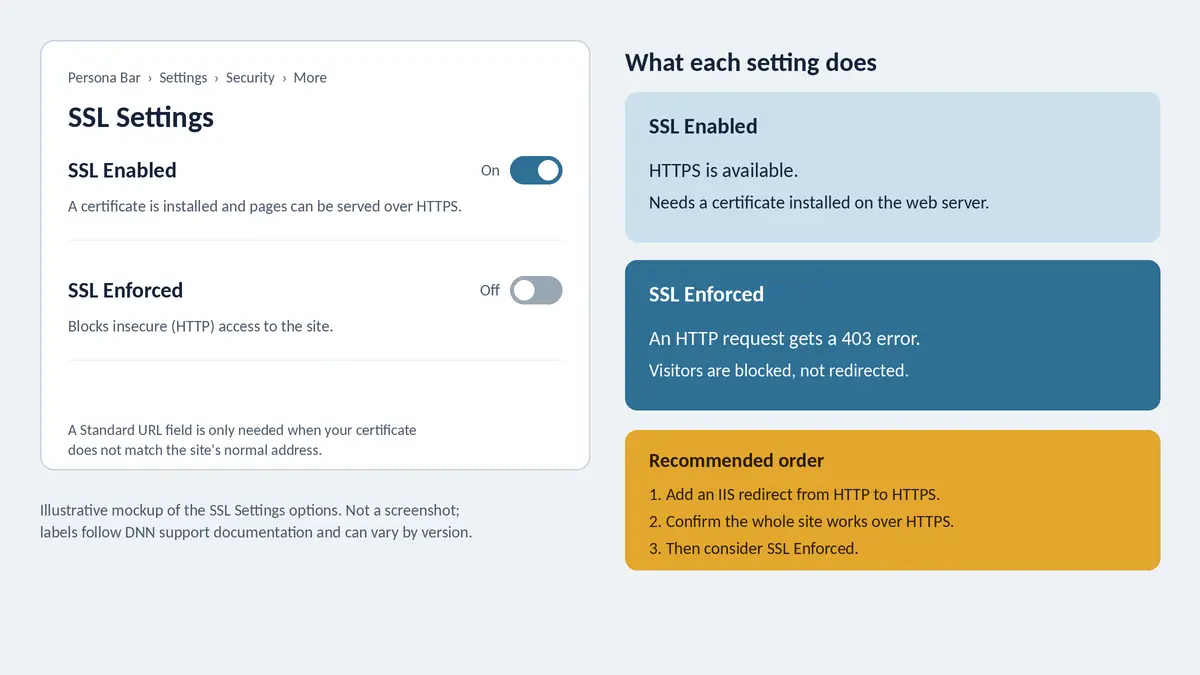
DNN distinguishes between enabling and enforcing SSL, and confusing them is a common cause of broken sites. Under Persona Bar > Settings > Security > More > SSL Settings:
SSL Enabled means a certificate is installed and pages can be served over HTTPS.
SSL Enforced means HTTP access is blocked. According to DNN support, a user who visits over HTTP receives an unauthorized (403) error rather than a redirect.
For a clean experience, redirect HTTP to HTTPS at the IIS level, then use DNN’s settings (and the per-page secure-connection option) as a second layer.
SSL Enabled and SSL Enforced are separate settings. (Replace with your own screenshot.)
Add HSTS in IIS
On IIS 10.0 version 1709 and later, Microsoft documents an <hsts> element on the site in applicationHost.config. When enabled, IIS adds the Strict-Transport-Security header to HTTPS responses.
Uploads are a frequent attack route. In Settings > Security > More > More Security Settings, review Allowable File Extensions. DNN’s own guidance warns against enabling extensions capable of executing back-end code, and adding file types can open significant risk, so allow only what you genuinely need.
Audit the list and remove anything no workflow requires.
Treat .svg carefully. The CVE-2026-40321 advisory above shows that script-bearing SVG files have been a real issue, so upgrade and limit who may upload them.
Give upload permissions only to roles that need them.
Confirm that scripts cannot execute from user-writable folders, and test this rather than assuming it.
Back up web.config and make changes in staging. DNN’s installer and upgrades also modify this file, and changing it restarts the application. Merge these into existing elements; duplicating an element causes a 500 error. The values below are standard ASP.NET and IIS settings; verify each against your version’s default web.config before deploying.
<configuration>
  <system.web>
    <!-- Keep your existing attributes; make sure debug is off in production -->
    <compilation debug="false" />
    <!-- Requires the site to run over HTTPS only -->
    <httpCookies httpOnlyCookies="true" requireSSL="true" />
    <!-- Add to your existing httpRuntime element -->
    <httpRuntime enableVersionHeader="false" />
  </system.web>
  <system.webServer>
    <httpProtocol>
      <customHeaders>
        <remove name="X-Powered-By" />
      </customHeaders>
    </httpProtocol>
  </system.webServer>
</configuration>
Server-level practices
Run each site in its own application pool with a dedicated, least-privilege identity. Grant write access only where DNN needs it, and test upgrades in staging because they write to the file system.
Connect to SQL Server with a dedicated login limited to the DNN database. Do not use sa or a sysadmin account.
Keep Windows, .NET Framework 4.8 and SQL Server patched.
Never leave installation or upgrade pages reachable to the public. Protect /Install/ with network or IIS rules where you can.
Use a Content Security Policy where your theme and modules allow it, and test thoroughly, since inline scripts in older extensions may break.
8. Audit third-party extensions
Practitioners consistently identify third-party extensions, rather than the core platform, as a primary source of vulnerabilities in DNN sites. Open Settings > Extensions and build an inventory with name, vendor, version and purpose.
Uninstall extensions that are unused, abandoned or no longer maintained.
Update the rest, and ask vendors to confirm DNN 10 and Telerik-free compatibility.
Treat custom modules as code that needs review: validate input, parameterise SQL, encode output, and check permissions on every action.
9. Monitor with the Security Analyzer and logs
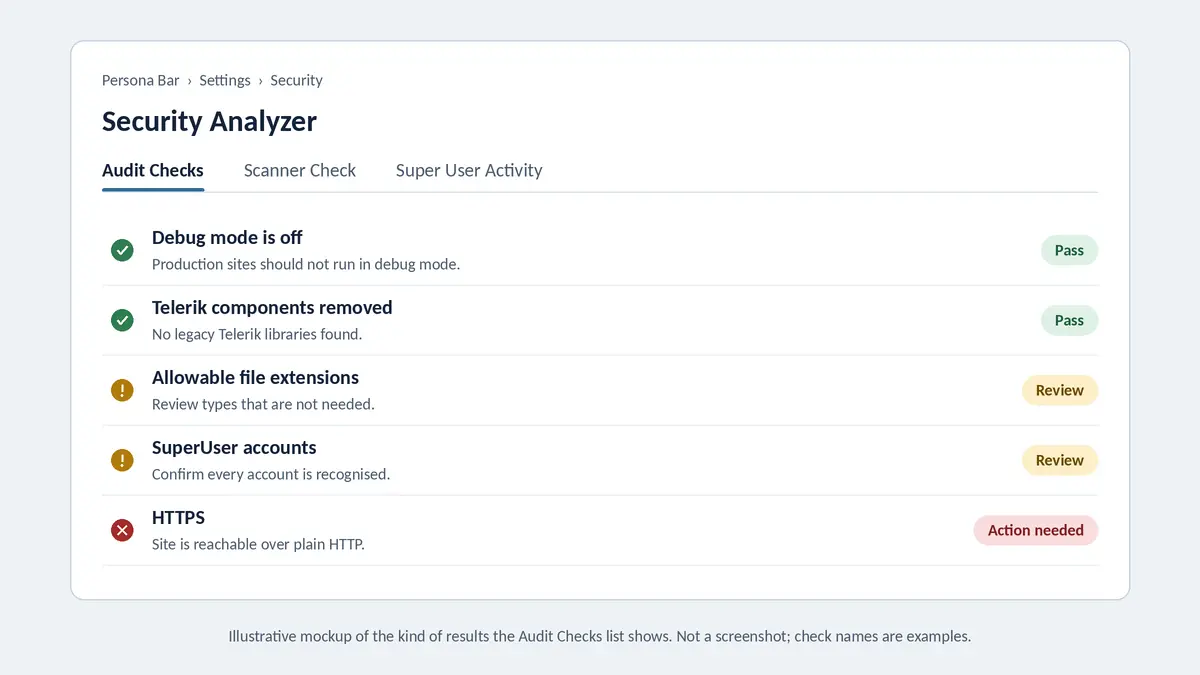
Since DNN 9, the Security Analyzer is built into the Persona Bar under Settings > Security > Security Analyzer, with Audit Checks, Scanner Check and Super User Activity subtabs. Do not install the old stand-alone Security Analyzer module on DNN 9 or later, and uninstall it when upgrading from an older version.
Review Audit Checks after every upgrade and configuration change. (Replace with your own screenshot.)
Run Audit Checks after every upgrade or configuration change.
Use the Scanner Check to search files and the database for unexpected content after a suspected defacement.
Review Manage > Admin Logs for repeated failed logins, unexpected errors and new privileged accounts.
Forward IIS and application logs to central storage where possible.
10. Add a WAF layer and test your backups
A web application firewall or CDN in front of DNN, such as Cloudflare, can block known attack patterns and buy time while you remove vulnerable extensions or schedule an upgrade. It complements patching and does not replace it.
Keep automated, off-server, encrypted backups of both files and database, and run a restore drill at least once. A backup you have never restored is an assumption, not a recovery plan.
11. Verification checklist
Post-hardening checks
Check
How to verify
Version is current and supported
Compare with the DNN releases page and the Security Bulletins tab
Users list filtered by Superusers matches your records
HTTP redirects to HTTPS
Request an HTTP URL and confirm a 301 to HTTPS; check the Strict-Transport-Security header
Version headers hidden
Inspect response headers for X-Powered-By and ASP.NET version headers
Upload limits work
Attempt to upload a disallowed file type as a normal user
Backups restore
Restore to a separate environment and open the site
12. Common mistakes to avoid
Treating an old, stable-looking site as safe because it has not been attacked yet.
Enabling SSL Enforced without an IIS redirect, which causes 403 errors for HTTP visitors.
Sharing one SuperUser login between several people.
Allowing extra upload extensions “temporarily” and never reverting.
Editing production web.config without a backup or staging test.
Posting suspected vulnerabilities in public forums instead of following the security policy.
13. When to involve a DNN specialist
You can usually handle account audits, upload-extension reviews and Security Analyzer checks in-house. Bring in experienced DNN or Evoq developers when you are:
Upgrading across several major versions or from a Telerik-dependent site.
Running custom or abandoned modules that need a code security review.
Recovering from a suspected compromise, defacement or unexplained SuperUser account.
Planning IIS, SQL Server and network hardening without disrupting production.
DNN includes a range of built-in security features, and its community states that it has a relatively small number of reported CVEs. Like any CMS, it has had vulnerabilities, as the 2026 advisories above show, so security depends on patching, configuration and the extensions you install.
How do I check whether my DNN version has known vulnerabilities?
Use the Security Bulletins tab in the Persona Bar, the DNN Security Center, and the public advisories on the DNN Platform GitHub repository.
What is the difference between an Administrator and a SuperUser?
An Administrator manages a specific site. A SuperUser has installation-wide access, including all sites and host-level settings, so keep those accounts to the minimum.
Does DNN have built-in two-factor authentication?
The documentation reviewed for this guide did not describe a built-in option. Third-party authentication providers that add 2FA are available. Check the documentation for your exact version and edition.
Do I need the Security Analyzer module?
Not on DNN 9 or later. The analyzer is built into the Persona Bar, and the old stand-alone module should not be installed.
Should I enable SSL Enforced?
Enable it only once HTTPS works for the whole site and you have an IIS-level HTTP-to-HTTPS redirect, because DNN’s enforcement returns an error for HTTP requests instead of redirecting them.
DNN Security Experts. Protection You Can Trust. Your DNN Is in Safe Hands.
Comprehensive DotNetNuke security audits, rapid vulnerability fixes, and dependable support whenever you need us.

 Jitendra